How to Make Your Own Graph Paper in Word (And Why You Shouldn't)
To make your own custom graph paper directly in Microsoft Word, you must open a blank document, navigate to the Insert tab, and select Table. You choose the maximum grid size available, which is exactly 10x8, and then manually add rows until the page is full.
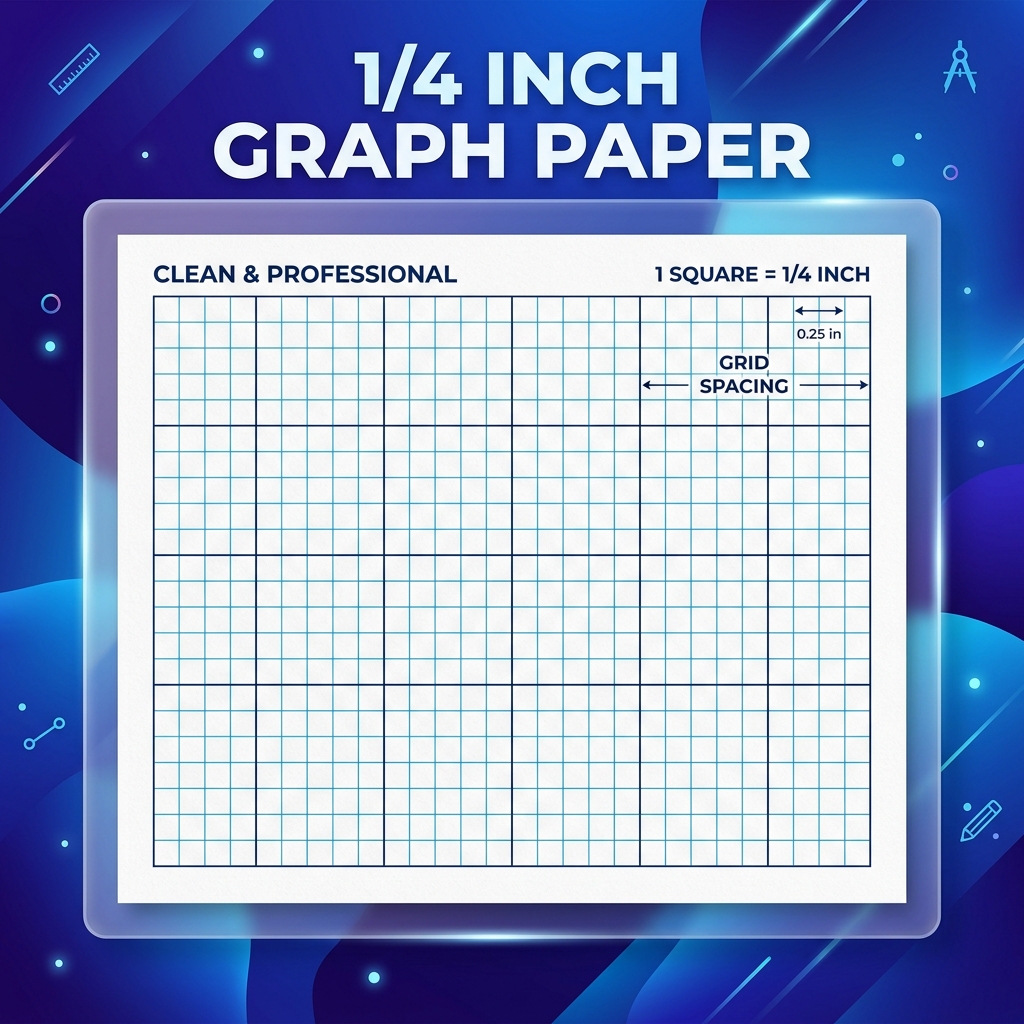
After generating this massive table, you highlight all 80 individual cells, go to Table Properties, and set both the exact row height and column width to 0.25 inches. I only use this method in a desperate emergency because it is incredibly tedious.
This manual process almost always causes margin clipping errors during printing, and Word completely struggles to render fine Cartesian grid lines. Instead of wasting 15 minutes, I highly recommend using a free online graph paper generator to instantly download a perfect PDF in just 2 seconds.
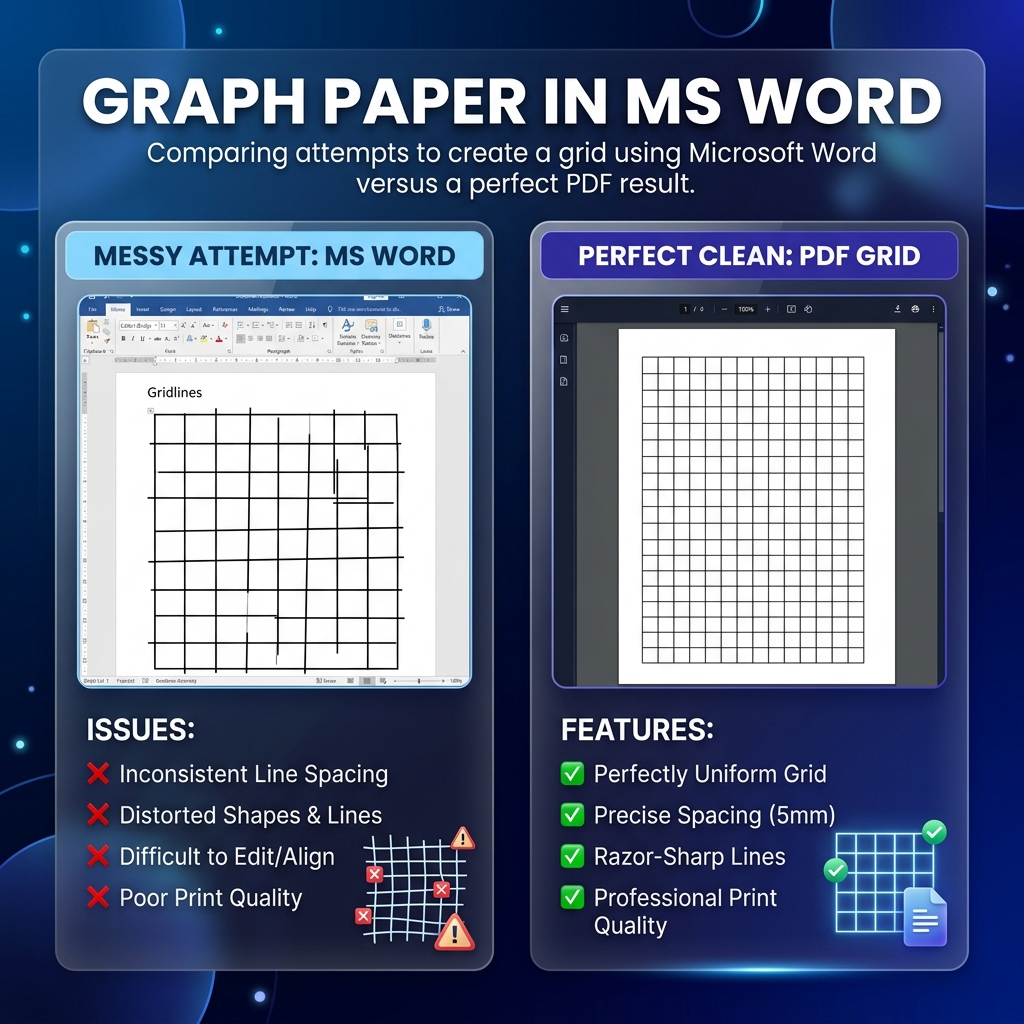
We have all been there. It is 11:00 PM, your kid has a massive algebra assignment due tomorrow morning, and you just realized you are completely out of grid paper. The stores are closed. Panic sets in.
Your first instinct is probably to open Microsoft Word and try to hack together a grid yourself. It seems like a logical idea. Word has a table feature, right? How hard could it be to just stretch a table across the page?
Well, spoiler alert: it is actually a massive headache. We are going to show you exactly how to do it if you are absolutely desperate, but we will also show you why it is a terrible long-term solution for math homework.
Table of Contents
- Step-by-Step: Creating a Grid in MS Word
- Why This Method Usually Fails
- The Faster, Smarter Alternative
- Comparing Word vs PDF Generators
- Frequently Asked Questions (FAQs)
- 1. Can you actually make mathematically perfect graph paper in Microsoft Word?
- 2. Why do hardware margins often mess up when printing Word graph paper?
- 3. What is a faster, smarter alternative to using MS Word for math grids?
Step-by-Step: Creating a Grid in MS Word
If you are determined to use Word, here is the exact manual process you must follow to get anything remotely resembling a mathematical grid.
- 🛑 Step 1: Fix Your Margins. By default, Word has one-inch margins. Go to `Layout > Margins > Custom` and set them all to 0.25 inches. Otherwise, your grid will have a massive white border.
- 🛑 Step 2: Insert the Table. Go to `Insert > Table`. The dropdown only lets you make a 10x8 table. Insert it. You will have to right-click and "Insert Rows Below" repeatedly until it fills the page.
- 🛑 Step 3: Force the Squares. This is the hard part. Highlight the entire table. Right-click and select `Table Properties`. Under the Row tab, check "Specify Height" and type `0.25"`. Set row height to "Exactly". Under the Column tab, check "Preferred Width" and type `0.25"`.
- 🛑 Step 4: Fix the Borders. Go to `Table Design > Borders` and change the line weight to 1/2 pt so the lines are not aggressively thick.
If you followed all those steps correctly, you should have a document that looks like a quarter-inch grid. Hit print and cross your fingers.
Why This Method Usually Fails
Here is the reality. Microsoft Word is a word processor. It was built for typing letters and essays, not for precise vector geometry.
When you try to force a massive table onto a page, Word fights back. If you add one row too many, Word will abruptly throw that row onto a second blank page. If you try to delete that page, you accidentally delete half the table.
Worse, when you finally hit print, Word often ignores your precise 0.25-inch settings to compensate for the printer's hardware margins. The bottom two rows usually get completely chopped off, and your perfect squares end up printing as slightly squashed rectangles. Good luck trying to graph a perfect circle on squashed rectangles.
The Faster, Smarter Alternative
Why spend twenty minutes fighting with Table Properties when you could have a perfect file in two seconds?
Instead of hacking MS Word, just use our Free Printable Graph Paper Generator. It is a web-based tool designed specifically to output mathematically perfect vector PDFs.
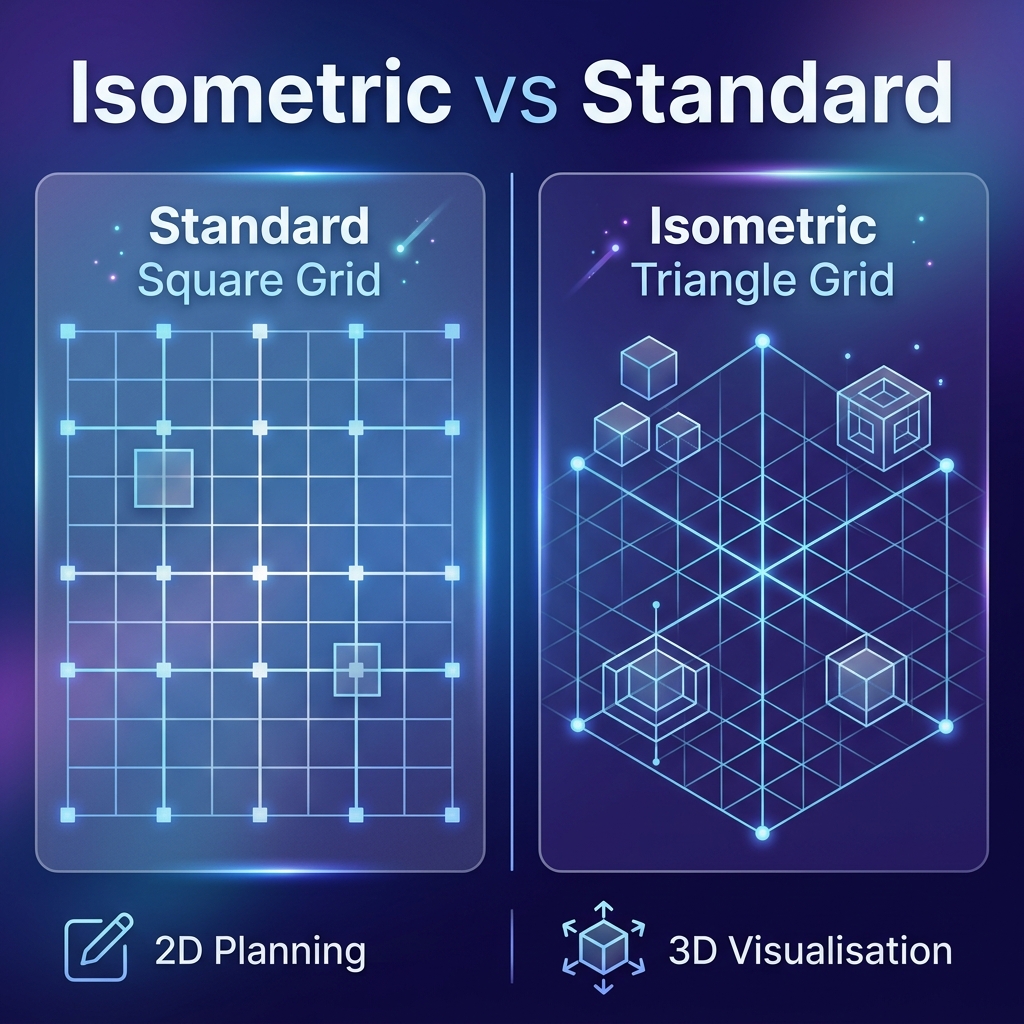
You literally just click a button. You can choose 1/4 inch, 1/5 inch, or isometric grids instantly. The lines are drawn using raw mathematics, meaning they will print razor-sharp. No squashed rectangles. No unexpected blank pages.
Comparing Word vs PDF Generators
Let's look at the actual time investment and output quality of both methods.
| Feature | Microsoft Word Method | PDF Generator Method |
|---|---|---|
| Time Required | 10 - 15 Minutes | 2 Seconds |
| Accuracy | Low (Squares often distort) | 100% Perfect Vectors |
| Customization | Extremely difficult | 1-Click Dropdowns |
Frequently Asked Questions (FAQs)
1. Can you actually make mathematically perfect graph paper in Microsoft Word?
No, it is nearly impossible to create a perfect word document graph paper template. Word inevitably alters your exact row heights to compensate for printer settings, resulting in squashed rectangular boxes instead of true mathematical squares.
2. Why do hardware margins often mess up when printing Word graph paper?
When you create a perfect grid in MS Word table format, your printer hardware margins will physically force the document to shrink. This scaling completely ruins the exact 0.25 inch table cells in word that you spent 15 minutes setting up.
3. What is a faster, smarter alternative to using MS Word for math grids?
The absolute smartest alternative is to stop using Word and use a free PDF graph generator. A dedicated online tool outputs 100% flawless vector PDFs instantly, eliminating formatting errors and saving you hours of frustrating manual work.
💬 Discussion
0 Comments