When you run out of grid sheets at 11:00 PM before a math submission, trying to build a square table inside Microsoft Word often produces squashed rectangles and clipped bottom borders. Below, we show the exact Word table settings and a 2-second vector PDF alternative.
Quick Answer: How to Make Your Own Graph Paper in Word?
- Set Narrow 0.25" Margins: Go to
Layout -> Margins -> Customand set Top, Bottom, Left, and Right margins to0.25"(6.35 mm). - Lock Exact Cell Dimensions: Insert a table, open
Table Properties, and set both Row Height (Exactly) and Column Width to0.25"(or0.5 cm) with0"cell padding. - Skip the 15-Minute Formatting Bug: Use our free PDF Graph Paper Generator to download a 254 DPI vector grid in 2 seconds without Word row-overflow errors.
We have all faced that late-night stationery emergency. Your child has an algebra graphing homework due tomorrow morning, the local shops are shut, and your notebook has zero graph pages left.
Opening Microsoft Word to build a table grid looks simple at first. Here is the exact manual procedure if you want to make one inside Word, followed by why a dedicated vector PDF saves you 15 minutes of frustration.
- Step-by-Step: Creating a Grid in Microsoft Word
- Why Manual MS Word Grids Often Fail
- Side-by-Side Comparison: MS Word vs Vector PDF Generator
- How to Insert a Perfect Grid PNG Into Word (Best Workaround)
- 1. For Teachers Making Exam Question Papers
- 2. For Full-Page Homework Sheets
- Skip MS Word Table Bugs - Download a True Square Grid
- Frequently Asked Questions (FAQs)
Step-by-Step: Creating a Grid in Microsoft Word
Follow these 4 exact menu settings to force Word's table engine into a square grid:
- Step 1 - Reduce Page Margins to 0.25 Inches: Click
Layout -> Margins -> Custom Marginsand type0.25"(6.35 mm) on all four sides so your grid covers the sheet. - Step 2 - Use Insert Table Dialog (Not the 10x8 Grid): Click
Insert -> Table -> Insert Table...and enter32 Columnsand40 Rowsfor a full 1/4 inch square grid. - Step 3 - Zero Out Cell Padding and Lock 0.25" Height: Right-click the table, open Microsoft Word Table Properties (
Cell -> Options), set all cell margins to0", then set Row Height to Exactly 0.25" and Column Width to 0.25". - Step 4 - Set 0.5 pt Light Gray Borders: Open
Table Design -> Borders -> Borders and Shading, choose1/2 ptwidth and light gray (#94a3b8) color so your pencil lines stay visible.
Why Manual MS Word Grids Often Fail
Microsoft Word is a text processor for your essays, not a CAD vector engine. By default, every table cell you insert contains an invisible paragraph mark (¶) with 11pt Calibri line-height spacing.
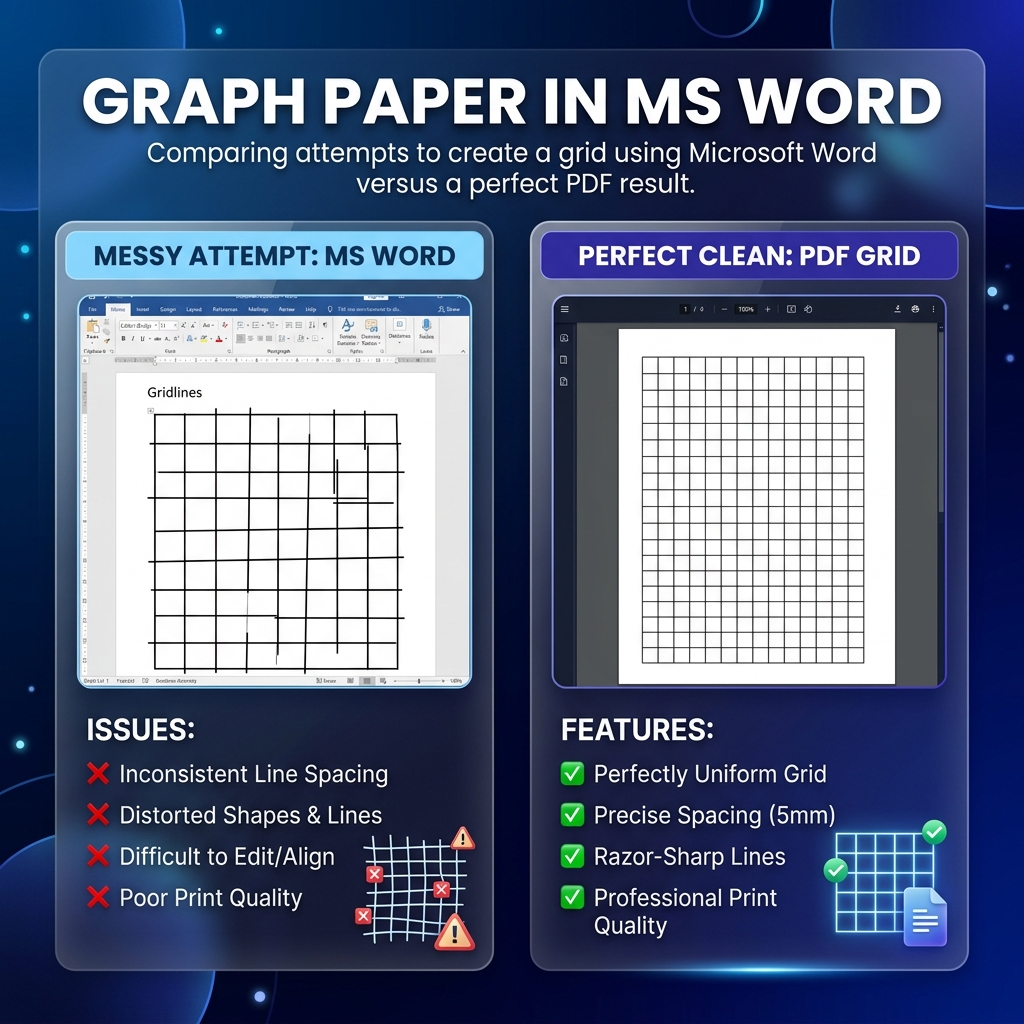
If you forget to zero out cell padding or paragraph line spacing, Word overrides your 0.25-inch height and stretches every cell into a 0.25" x 0.31" rectangle, turning any circle or 45° slope you plot into an oval.
Why Word Creates a Blank 2nd Page: Word requires at least 1 empty paragraph line after a table. When your 40-row table touches the bottom 0.25" margin, Word pushes that trailing paragraph onto Page 2, and pressing Backspace deletes your bottom table row instead!
Side-by-Side Comparison: MS Word vs Vector PDF Generator
Compare the setup time and dimensional accuracy of both methods below:
| Feature | Microsoft Word Table Method | Mathematics Today PDF Generator |
|---|---|---|
| Setup Time | 10 to 15 Minutes of menu adjustments | Under 5 Seconds (1-click download) |
| Square Aspect Ratio | Often stretches into 0.25" x 0.30" rectangles | 100% True 1:1 geometric squares at 254 DPI |
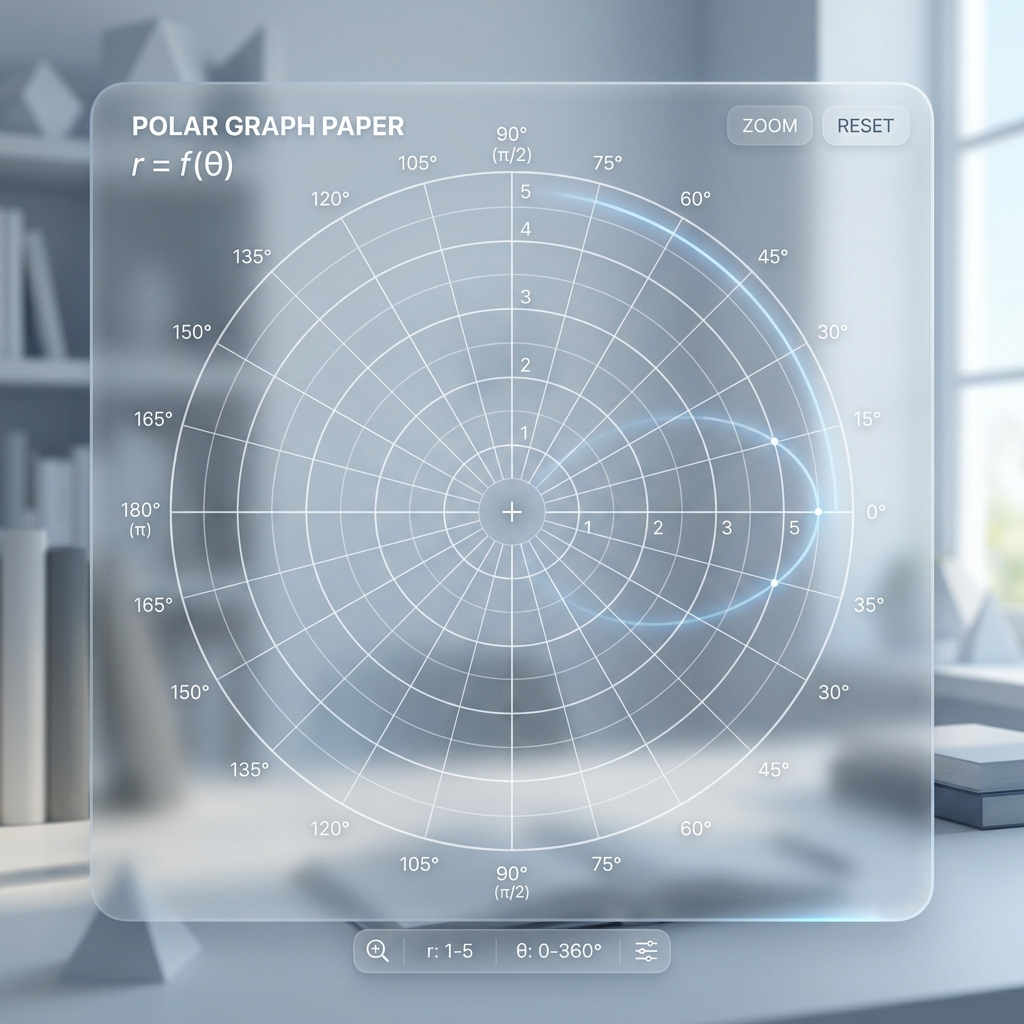
| Supported Grid Types | Basic rectangular tables only | Cartesian, Engineering, Polar, Isometric, Hex and Dot |
| Insert into Word Docs | Shifts text layout when typing | Export PNG/SVG and set Behind Text in Word |
How to Insert a Perfect Grid PNG Into Word (Best Workaround)
1. For Teachers Making Exam Question Papers
If you are typing a math test in Word and need a small coordinate grid next to Question 4, do not use a Word table. Generate a labeled coordinate plane on our homepage, click PNG Image, and drop that image into your Word doc with Wrap Text -> Tight.
2. For Full-Page Homework Sheets
Open our Free Printable Graph Paper Generator, choose A4 or US Letter, select your exact millimeter or inch spacing, and click PDF for a crisp single-page printout with zero blank overflow pages.
Skip MS Word Table Bugs - Download a True Square Grid
Stop fighting with stretched Word cells and blank overflow pages. Generate an exact 0.25-inch or 5mm grid in our 254 DPI tool and export a PNG or PDF in 5 seconds.
Launch Free Graph Paper Generator →Frequently Asked Questions (FAQs)
1. Why do my 0.25-inch table cells look like rectangles in Microsoft Word?
Word adds default left/right cell padding (0.08") and paragraph line height inside every cell. To get true squares, you must open Table Properties, set cell margins to 0", and change Row Height from "At least" to "Exactly 0.25 inches".
2. How do I stop Word from adding a blank second page after a full-page grid?
Select the empty paragraph line below the table on Page 2, press Ctrl+D to open Font settings, and set its font size to 1 pt with 0 pt spacing, or reduce your table by 1 row so that trailing paragraph fits on Page 1.
3. What is the fastest alternative to building graph paper in Word?
Use our free online Graph Paper Generator to download a ready-made 254 DPI PDF or PNG in 2 seconds. You can print the PDF directly at 100% scale or insert the PNG image into your Word assignment without table distortion.